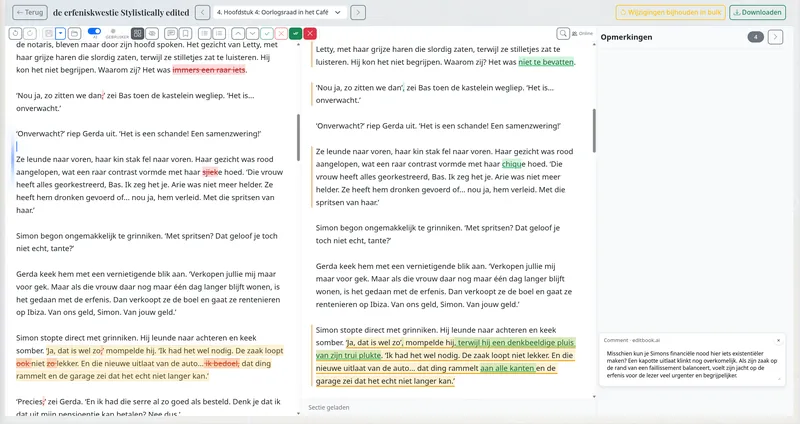
The version in your clipboard is one block of new text. The version in your document is one block of old text. Reconciling them sentence by sentence so that Word’s track changes shows a sensible set of changes — rather than “entire paragraph replaced” — is its own little editing job. Half the time you give up and just paste over, losing the trace of what actually changed.
The floating AI-menu is the same loop, without the copy-paste, and with one fewer thing to lose along the way: the diff.
How it actually works
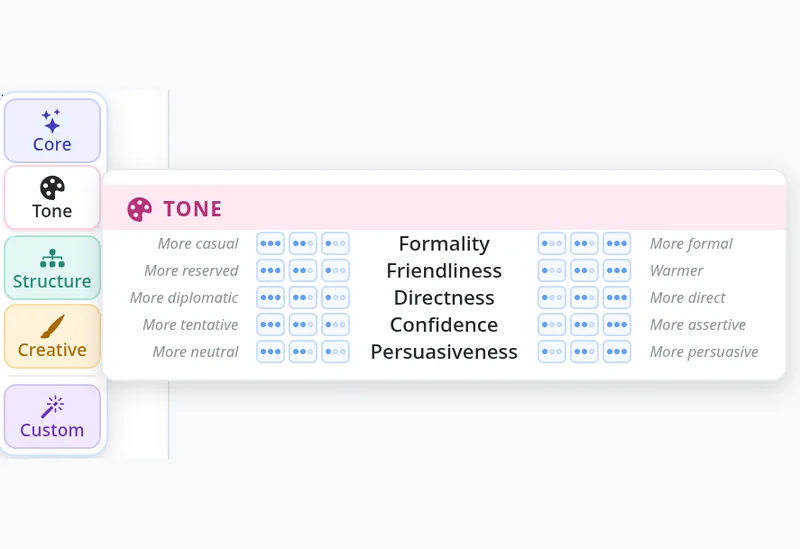
Select a sentence or a paragraph in the editor. The floating AI-menu appears next to the selection. Pick a category, pick an action, dial the intensity, run it. The rewrite comes back as a sentence-level tracked change in the same document — not a paragraph-replacement blob. You see which clauses moved, which adverbs went, which commas became em-dashes, because the rewrite was computed against the original sentence structure rather than produced cold in a chat window with no idea what the surrounding prose was.
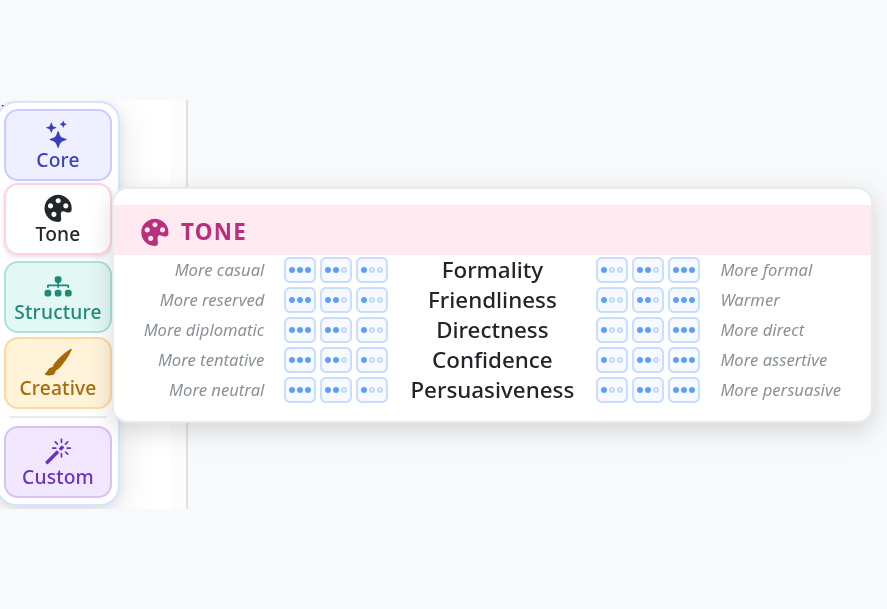
The Tone tab of the floating AI-menu — each axis runs from one side to the other with three intensity levels per direction.
The categories
The criteria are not a free-text wishlist; they are an actual taxonomy of editorial moves, grouped into five tabs in the menu.
Core. Single-direction actions, each with three intensity levels: Improve, Shorten, Expand, Rephrase, Simplify, Fix grammar and style, Improve structure, Naturalize dialogue. These are the moves you run when you already know what kind of pass the passage needs — just not how heavy.
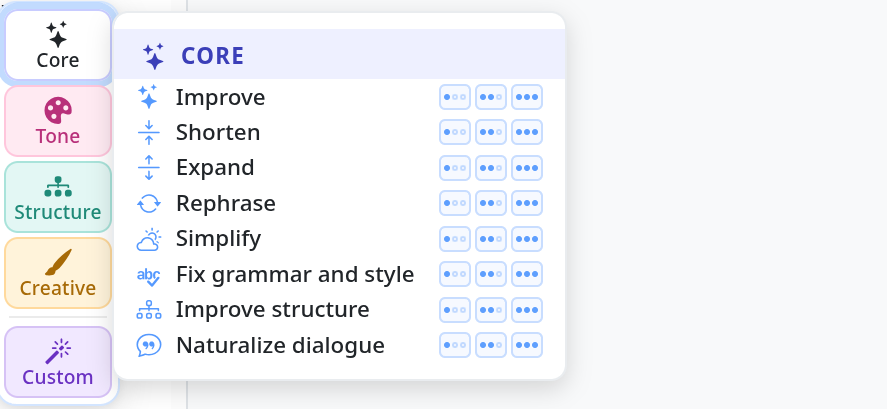
The Core tab — eight named actions, each with light / normal / strong dots.
Tone. Five bidirectional axes:
- Formality — more casual ↔ more formal.
- Friendliness — more reserved ↔ warmer.
- Directness — more diplomatic ↔ more direct.
- Confidence — more tentative ↔ more assertive.
- Persuasiveness — more neutral ↔ more persuasive.
Structure. Specificity (more general ↔ more concrete) and Layout (flowing prose ↔ scannable with bullets and short paragraphs).
Creative. Five bidirectional axes for fiction work: Vividness, Sensory detail, Emotional weight, Tension, and Show vs. tell.
Custom. A free-text field for anything the taxonomy doesn’t cover. “Make this sound like a 1920s telegram” is a legitimate instruction if that is what the passage needs.
Intensity
Every action — Core, Tone, Structure, Creative — has three intensity levels (light, normal, strong) in each direction it supports. Light makes the smallest change that still satisfies the instruction; strong applies it confidently and substantively, reshaping phrasing and rhythm where it clearly helps. The default is normal. The intensity dial is what makes the menu useful on the second pass: if the first rewrite was too cautious or too aggressive, you don’t pick a different criterion, you pick the same one harder or softer.
A concrete example: stiff dialogue
Naturalize dialogue is, on paper, an unassuming Core action. In practice it’s one of the things the floating AI-menu does best, because the AI gets the full conversational context of the surrounding lines and can make small, idiomatic moves that a generic chat-window rewrite would miss.
Here is a corporate-coded dialogue from a contemporary novel-in-progress (Patient Hours), selected in the editor with Naturalize dialogue (normal) about to fire:
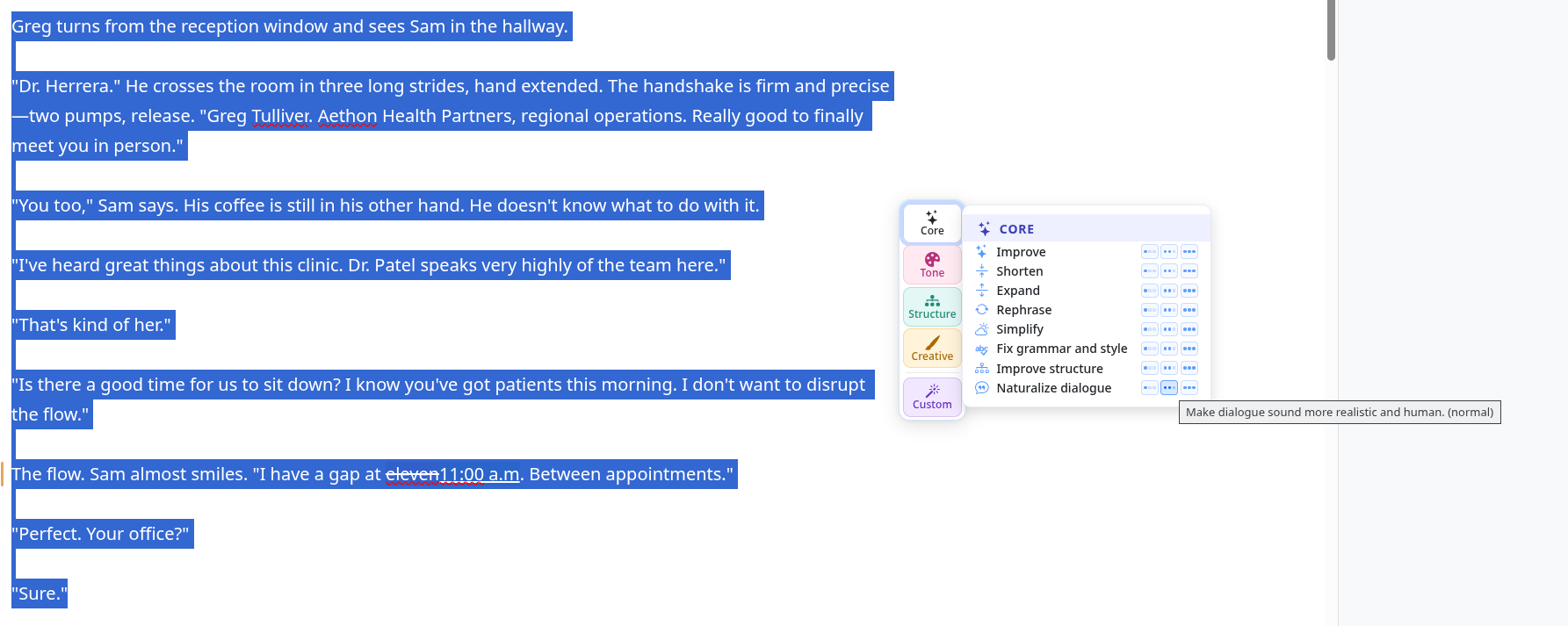
Before — the entire dialogue block is selected; the Core tab is open and the tooltip shows “Make dialogue sound more realistic and human. (normal)”.
And here is what comes back, shown as track changes in the editor:
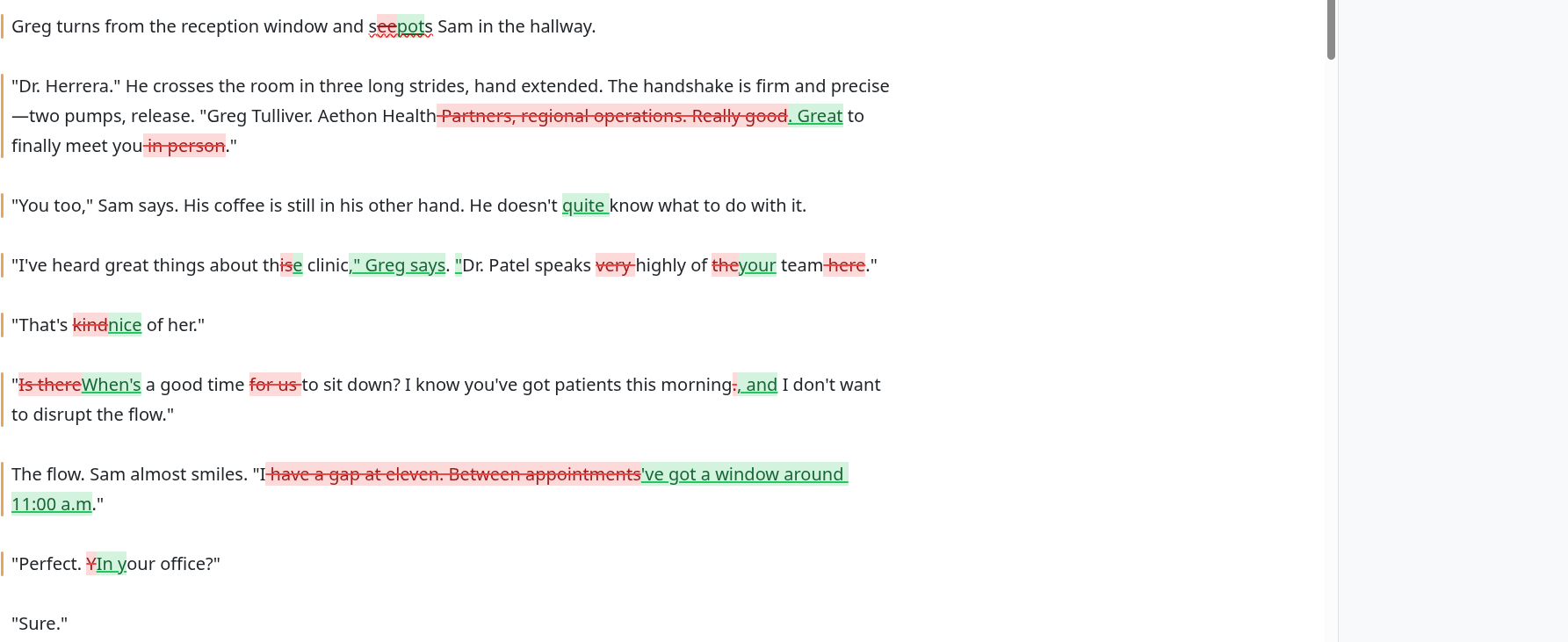
After — the same passage with every change marked. The dialogue is now conversational without losing any of the original beats. (Click either screenshot to enlarge.)
Every revision in that pass is a sentence-level tracked change you can accept or reject independently. If you like the corporate flavour of “Aethon Health Partners, regional operations” — maybe Greg is meant to sound stiff — you reject that one revision without losing the rest of the pass.
Where to find it
The floating AI-menu is available throughout the split-view editor: select text and look for the AI button. It is on by default. You don’t need to enable anything; you don’t need to switch view modes; it just appears.
Posted by the EditBook.ai dev team. We write here when we ship something new.