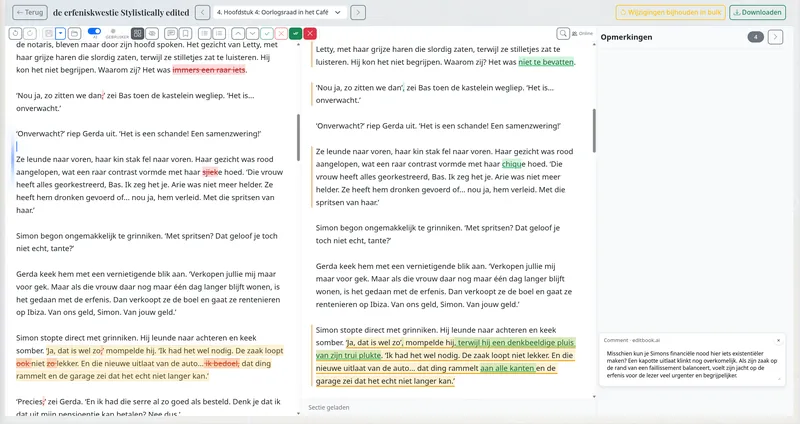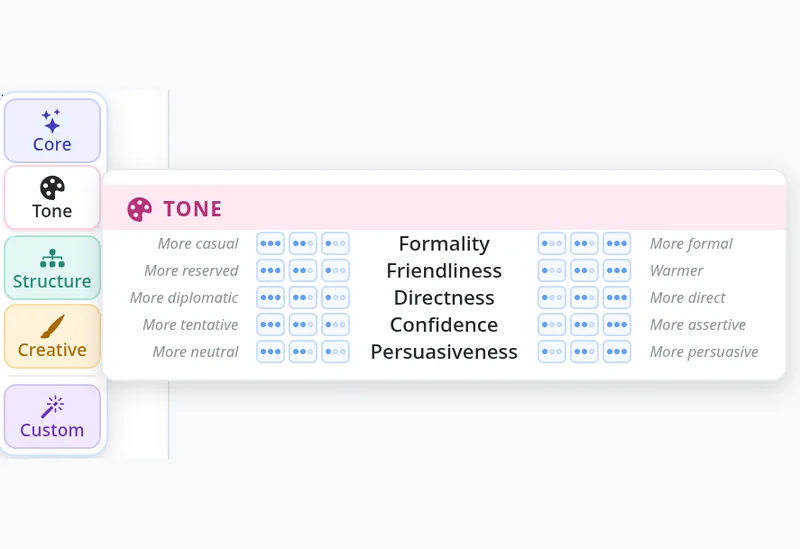
De versie in uw klembord is één blok nieuwe tekst. De versie in uw document is één blok oude tekst. Die twee zin voor zin in elkaar puzzelen, zodat de track-changes van Word een leesbaar verschil laten zien in plaats van “hele alinea vervangen”, is zijn eigen redactieklusje. De helft van de tijd geeft u het op en plakt u gewoon over de oude tekst heen — en het spoor van wat er werkelijk veranderd is, verdwijnt.
Het zwevende AI-menu volgt dezelfde basisworkflow, maar dan zonder het copy-pasten en met behoud van datgene wat onderweg vaak verdwijnt: de leesbare set van wijzigingen.
Hoe het werkt
Selecteer een zin of een alinea in de editor. Naast de selectie verschijnt het zwevende AI-menu. Kies een categorie, kies een actie, stel de intensiteit in, druk op uitvoeren. De herbewerking komt terug als een wijziging op zinsniveau in hetzelfde document — geen blok dat de hele alinea vervangt. U ziet welke zinsdelen verschoven zijn, welke bijwoorden eruit zijn, welke komma’s gedachtestreepjes werden, omdat de herbewerking is berekend ten opzichte van de oorspronkelijke zinsstructuur en niet los van de context is geproduceerd in een chatvenster.
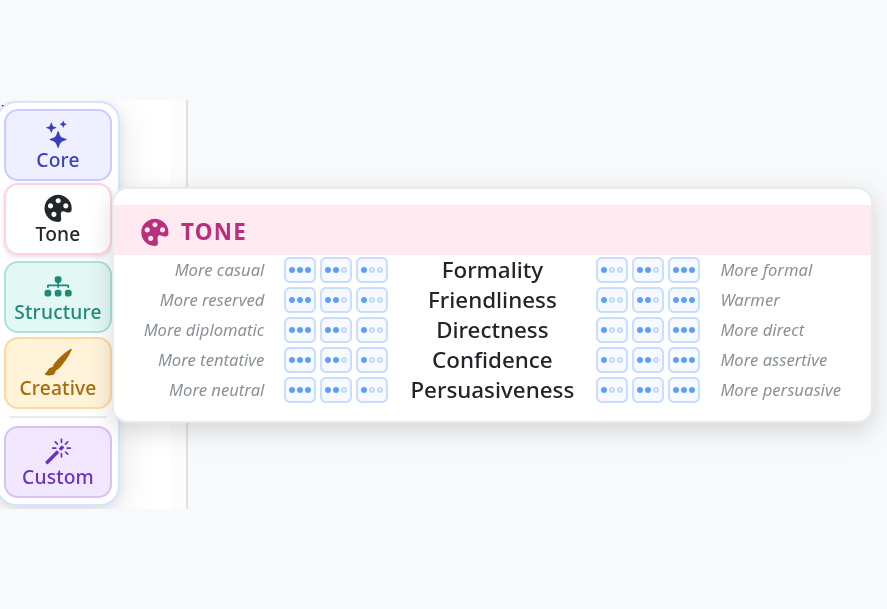
Het tabblad Toon van het zwevende AI-menu — vijf stijlschalen, elk met drie intensiteitsniveaus per richting.
De categorieën
De criteria zijn geen vrije wensenlijst; het is een echte taxonomie van redactionele bewegingen, verdeeld over vijf tabbladen in het menu.
Kern. Enkelvoudige acties, elk met drie intensiteitsniveaus: Verbeteren, Inkorten, Uitbreiden, Herformuleren, Vereenvoudigen, Grammatica & stijl corrigeren, Structuur verbeteren, Dialoog natuurlijker maken. Dit zijn de bewegingen die u inzet wanneer u al weet welk soort ronde de passage nodig heeft — alleen nog niet hoe stevig.
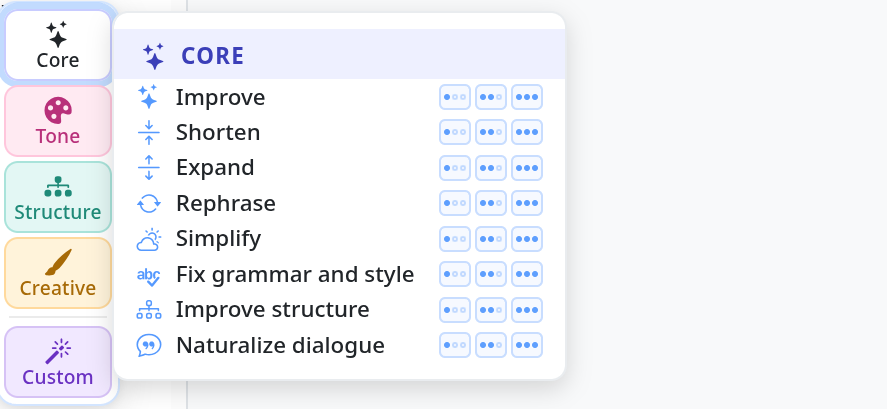
Het tabblad Kern — acht benoemde acties, elk met de standen licht, normaal en sterk.
Toon. Vijf stijlschalen:
- Formaliteit — informeler ↔ formeler.
- Vriendelijkheid — gereserveerder ↔ warmer.
- Directheid — diplomatieker ↔ directer.
- Zelfvertrouwen — terughoudender ↔ stelliger.
- Overtuigingskracht — neutraler ↔ overtuigender.
Structuur. Specificiteit (algemener ↔ concreter) en Opmaak (vloeiend proza ↔ scanbaar met opsommingstekens en korte alinea’s).
Creatief. Vijf stijlschalen voor fictie: Levendigheid, Zintuiglijke details, Emotionele lading, Spanning en Tonen vs. vertellen.
Aangepast. Een vrij tekstveld voor alles wat niet in de taxonomie past. “Laat dit klinken als een telegram uit de jaren twintig” is een geldige instructie als de passage daarom vraagt.
Intensiteit
Elke actie — Kern, Toon, Structuur, Creatief — heeft drie intensiteitsniveaus (licht, normaal, sterk) in elke richting die zij ondersteunt. Licht doet de kleinste aanpassing die nog aan de instructie voldoet; sterk past hem stevig en doortastend toe en herschikt formulering en ritme waar dat duidelijk helpt. Standaard staat hij op normaal. De intensiteit is wat het menu nuttig maakt bij een tweede ronde: als de eerste herbewerking te voorzichtig of te agressief was, kiest u niet een ander criterium, maar hetzelfde criterium harder of zachter.
Een concreet voorbeeld: stijve dialoog
Dialoog natuurlijker maken lijkt op papier een bescheiden Kern-actie. In de praktijk is het een van de sterkste onderdelen van het zwevende AI-menu, juist omdat de AI de volledige conversationele context van de omliggende regels meekrijgt. Daardoor kan het kleine, idiomatische ingrepen doen die een losse chat-herbewerking vaak mist.
Hieronder een corporate-getinte dialoog uit een hedendaagse roman in wording (Patient Hours, Engelstalig), geselecteerd in de editor met Naturalize dialogue (normal) op het punt om af te vuren:
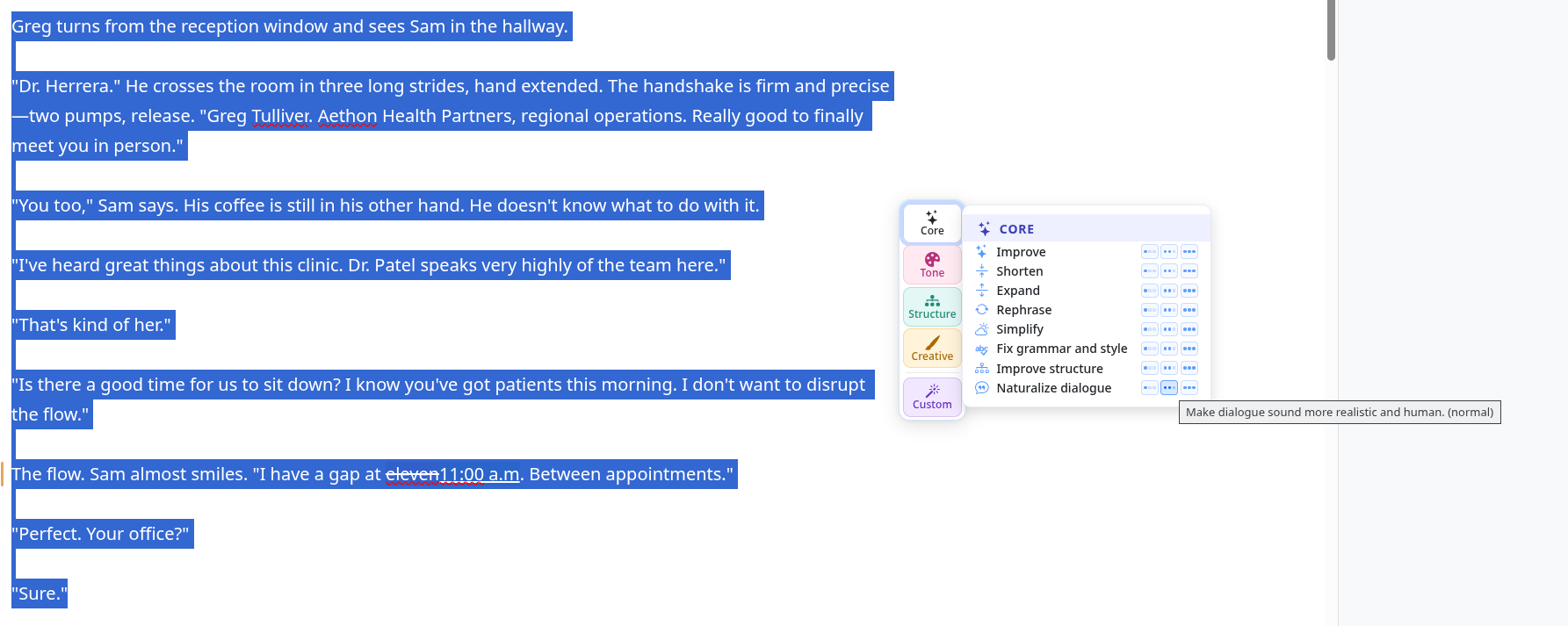
Voor — het hele dialoogblok is geselecteerd; het Kern-tabblad staat open en de tooltip toont “Make dialogue sound more realistic and human. (normal)”.
En dit is wat ervan terugkomt, als track-changes in de editor:
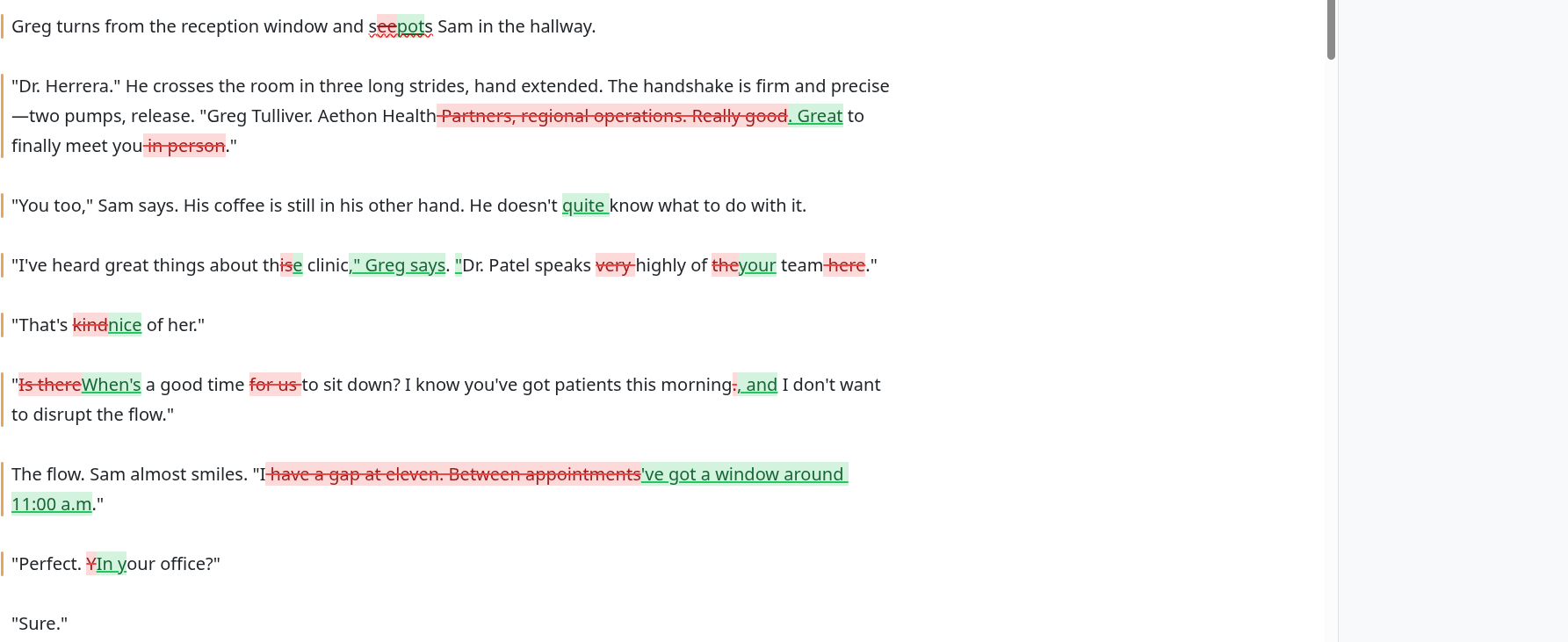
Na — dezelfde passage met elke wijziging gemarkeerd. De dialoog klinkt nu natuurlijker, zonder dat het ritme van de oorspronkelijke replieken verloren gaat. (Klik op een van de screenshots om te vergroten.)
Elke wijziging uit zo’n ronde verschijnt als een afzonderlijke tracked change op zinsniveau, die u apart kunt accepteren of weigeren. Vindt u het corporate-gevoel van “Aethon Health Partners, regional operations” eigenlijk wel passen — misschien moet Greg juist stijf klinken — dan weigert u díe ene revisie zonder de rest van de ronde kwijt te raken.
Waar u het vindt
Het zwevende AI-menu is overal beschikbaar in de gesplitste editor: selecteer tekst en zoek naar de AI-knop. Het staat standaard aan. U hoeft niets in te schakelen; u hoeft niet van weergave te wisselen; het verschijnt vanzelf.
Geplaatst door het EditBook.ai-devteam. We schrijven hier wanneer we iets nieuws uitbrengen.