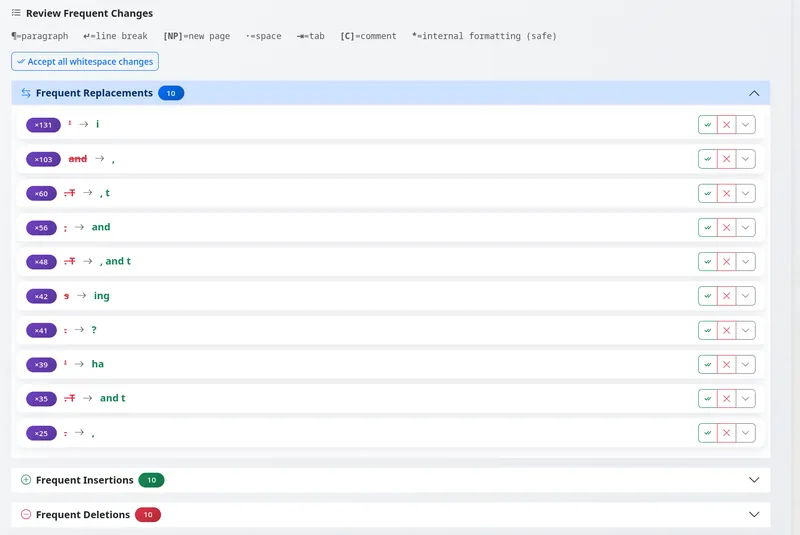
Den mest almindelige tilbagemelding, vi fik fra redaktører, der brugte den tidligere gennemgangsvisning, var enkel: »Jeg vil gerne se, hvad der er ændret, uden at miste overblikket over, hvad der stod før.« Ved en grundig stilistisk redigering bliver den rene diff-visning hurtigt uoverskuelig – stort set hvert andet ord ser ud til at være markeret – og den underliggende tekst forsvinder bag markeringerne. Den nye editor med opdelt visning sætter begge dele tilbage, hvor de hører hjemme.
Hvad er nyt
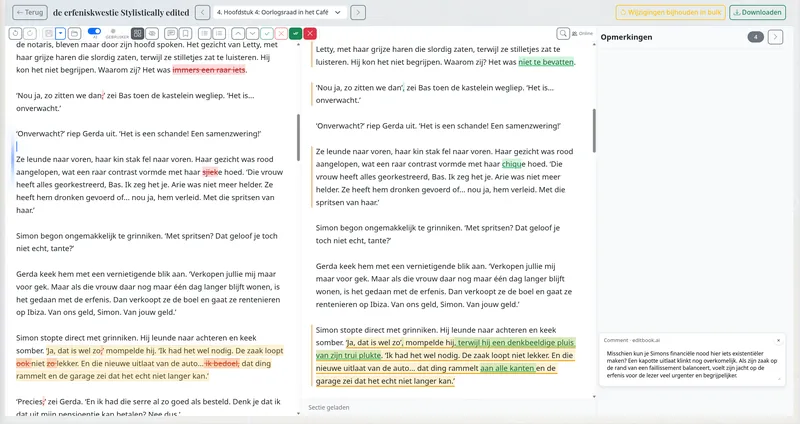
Original til venstre, redigeret version til højre. De to ruder følges ad, når du scroller, så det afsnit, du læser i den ene rude, altid står lige ud for sit modstykke i den anden. Klik på en sætning i den ene rude, og det tilsvarende sted i den anden rude fremhæves.
To adskilte ændringslag – AI og redaktør. Hver ændring er tilskrevet en ophavsmand: AI-rettelser vises i én farve, dine egne rettelser i en anden. Når du eksporterer til Word, medfølger begge lag som ændringsmarkeringer under Registrer ændringer med de oprindelige forfatternavne, så en senere korrekturlæser med ét blik kan se, hvem der har foreslået hvad.
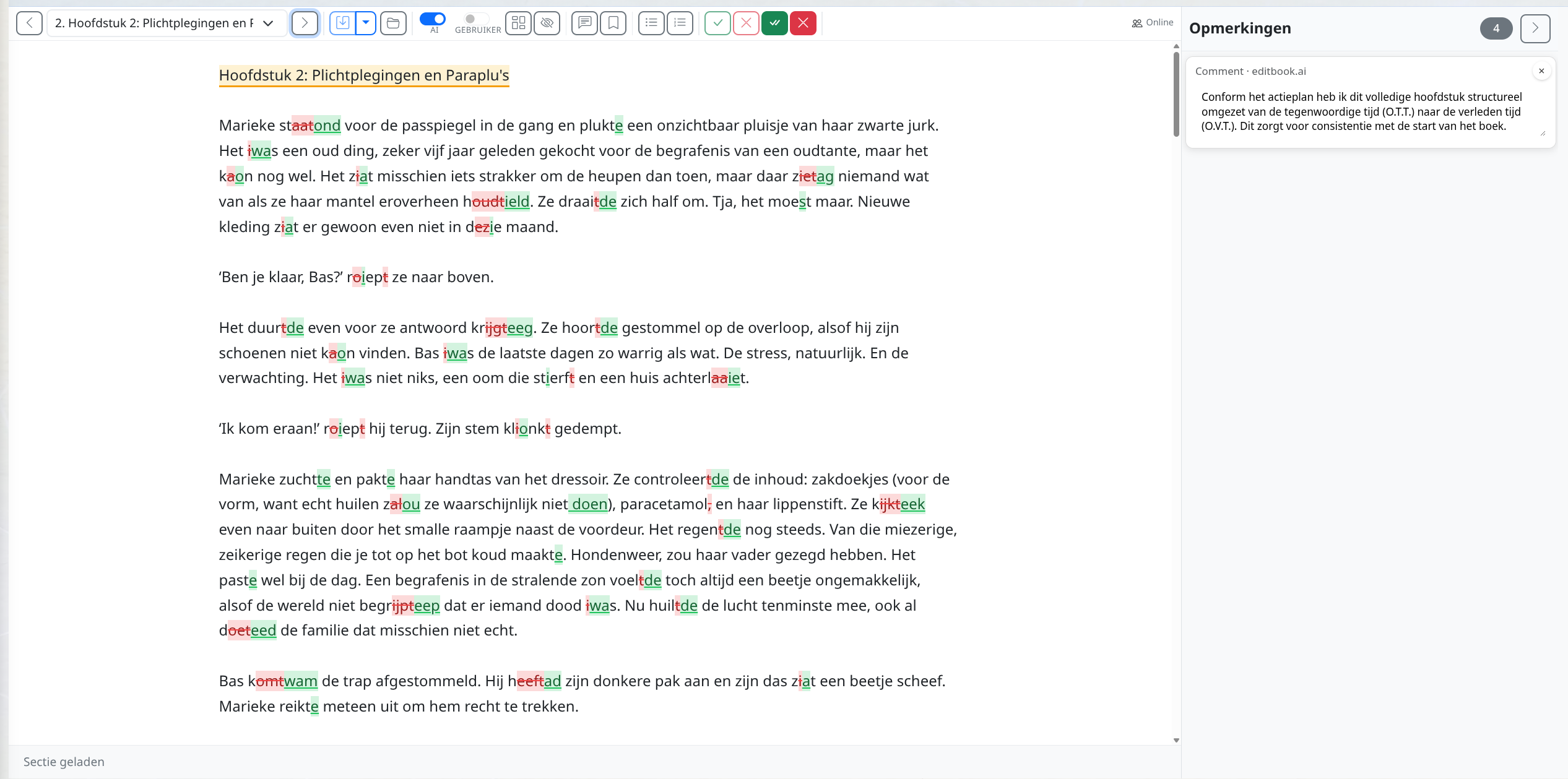
Hver ændring – her en harmonisering af verbernes tid – vises som en selvstændig ændringsmarkering med en forklaring, klar til at blive accepteret, afvist eller justeret.
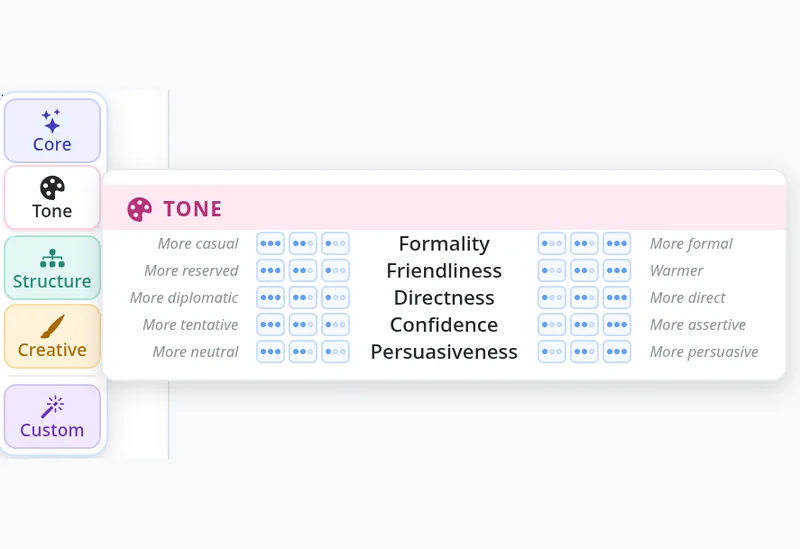
Svævende AI-menu til kriteriestyrede rettelser. Hold musen over en sætning eller en markering, og den svævende AI-menu dukker op, så du kan bede om en målrettet omskrivning ud fra et bestemt kriterium. Resultatet lander som en ændringsmarkering, du kan acceptere eller afvise. Vi har viet den svævende AI-menu sit helt eget indlæg – se indlægget om den svævende AI-menu for detaljer om, hvad den kan, og hvordan du bruger den.
Hvorfor lagdelingen betyder noget
Forfattere vil ikke kun vide, hvad der er ændret – de vil også vide, hvem der har ændret det. Den opdelte editor fastholder denne skelnen ved at holde AI-rettelser og dine egne rettelser i hvert sit lag og give dem forskellige forfatternavne ved eksport.
Registrer ændringer er kun nyttig, når funktionen fortæller en historie. Hvem foreslog hvad, i hvilken rækkefølge, og hvilke beslutninger der holdt stand – den historie skal overleve helt frem til den endelige fil, ellers falder hele argumentet for gennemsigtighed til jorden.
AI-perspektiver til analysen
Opdateret i september 2026. Til manuskriptanalysen vælger du nu ét, to eller tre uafhængige AI-perspektiver. EditBook samler læsningerne i én rapport, hvor både fælles observationer og forskellige vurderinger forbliver synlige. Du kan også tilføje en markedsundersøgelse med sammenlignelige titler og links til kilderne.
Ved redigering og korrektur vælger du fortsat model i opgavens indstillinger. Se, hvordan den aktuelle analyse fungerer.
Hvor du finder den
Editoren med opdelt visning er standard, når du åbner et manuskript, der er under gennemgang. Du kan skifte til den klassiske visning med én rude fra menuen øverst til højre i editoren, hvis du foretrækker den til meget lette rettelser.
Den er, som alt andet i EditBook.ai, bygget op om det princip, vi bliver ved med at vende tilbage til: AI’en gør det tunge arbejde, men det er redaktøren, der har styringen over siden.
Skrevet af EditBook.ai’s udviklingsteam. Vi skriver her, når vi lancerer noget nyt.