Most editors work in Word, because that is what authors send and what they expect back. Any other tool has to fit into that exchange. If tracked changes lose their author on the way, or a comment ends up next to the wrong sentence, you spend your time repairing the file instead of editing the book.
Since this weekend, every manuscript in EditBook opens in a new editor built around that exchange. The author sends a Word file. You, and maybe a colleague, make changes and add comments. The author gets a Word file back in which every change can still be accepted or rejected. The old editor showed one chapter at a time. The new one shows the whole book.
The whole book on one page
Editing a book means moving back and forth: checking whether a name is spelled the same in chapter 2 and chapter 14, or whether a comment you made earlier still applies. That is easier when you have the whole book in front of you.
All chapters are on one page, each in its own block. Use the Outline in the side panel to jump to a chapter. The Comments tab lists the comments of the whole book, not just those of the chapter you are in.
You can split a chapter or merge two chapters, and mark a chapter as done once you have finished it. Under Versions you can go back to an earlier version of one chapter or of the whole book.
Working together
Often more than one person works on a book: the author answers your questions, or two editors divide the chapters. Sending files back and forth by email then soon leads to doubt about which version is the latest.
In the new editor you work in the same book at the same time. You see what the others type while they type it, and every change shows who made it.
Reading and reviewing changes
A manuscript with hundreds of tracked changes is hard to read. Sometimes you want to see exactly what changed, sometimes you just want to read the new text.
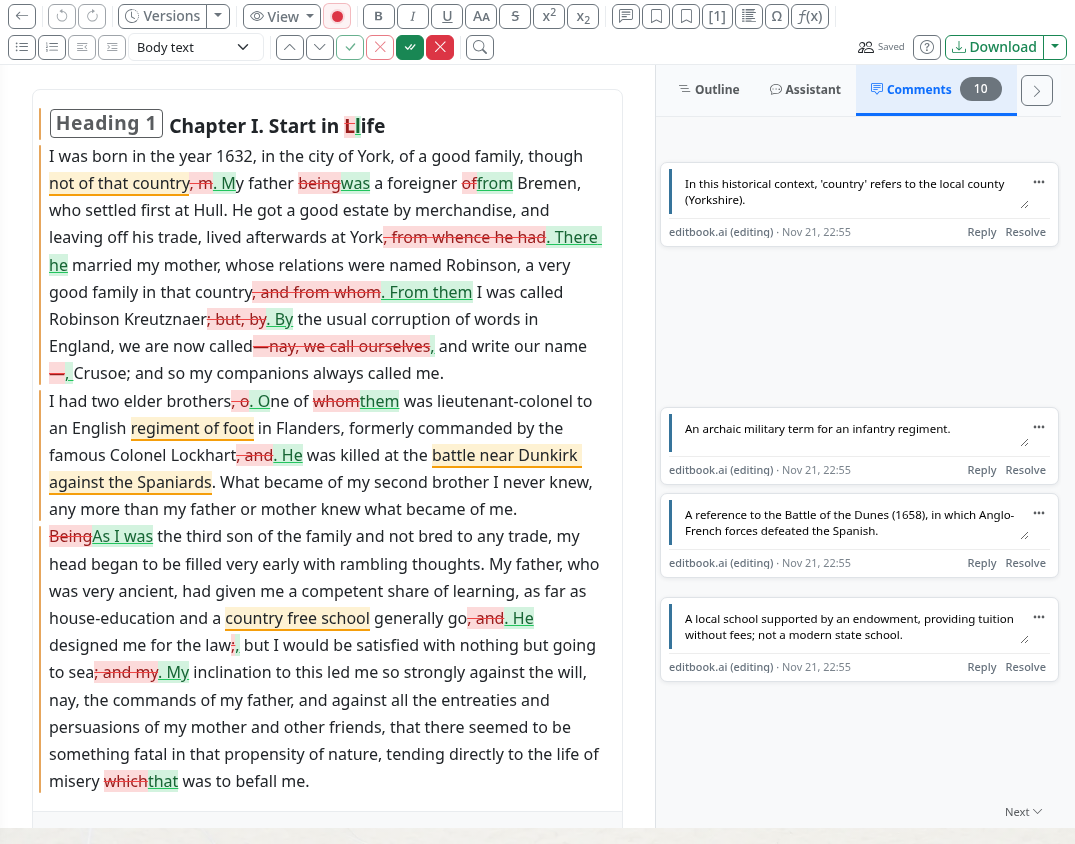
Insertions and deletions in the text, as in Word
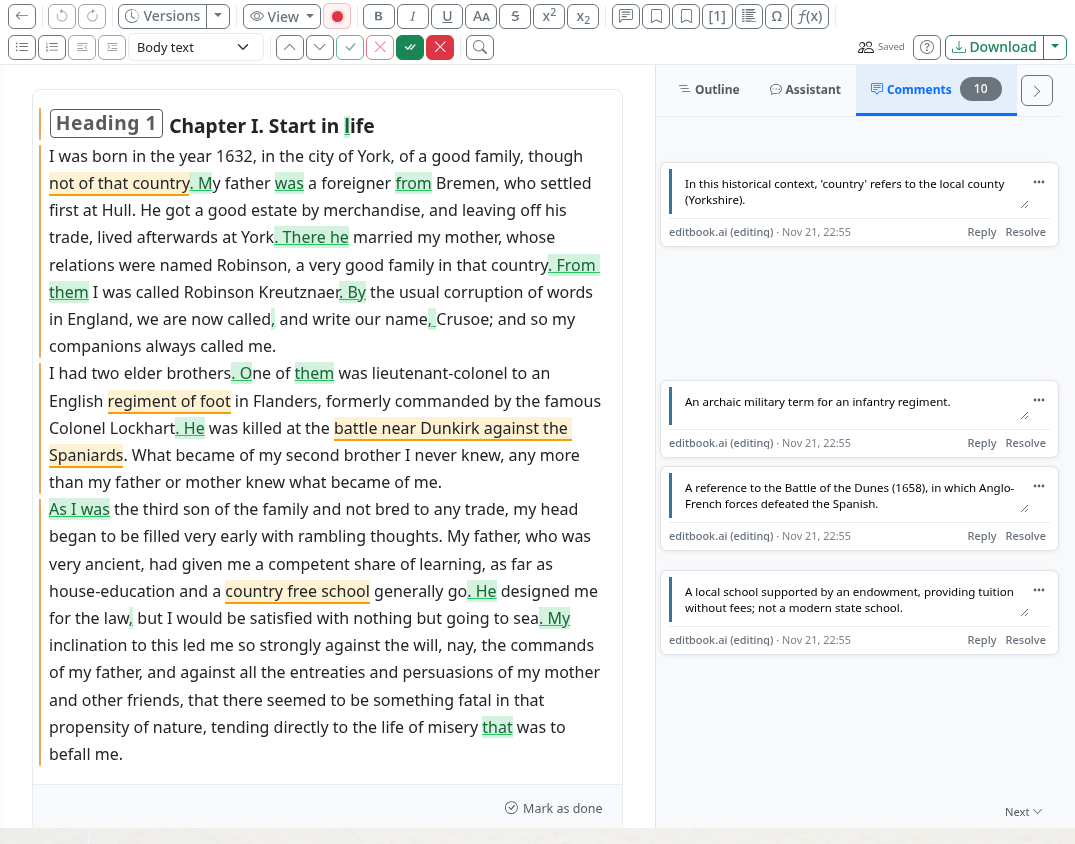
The new text with insertions marked and deletions hidden
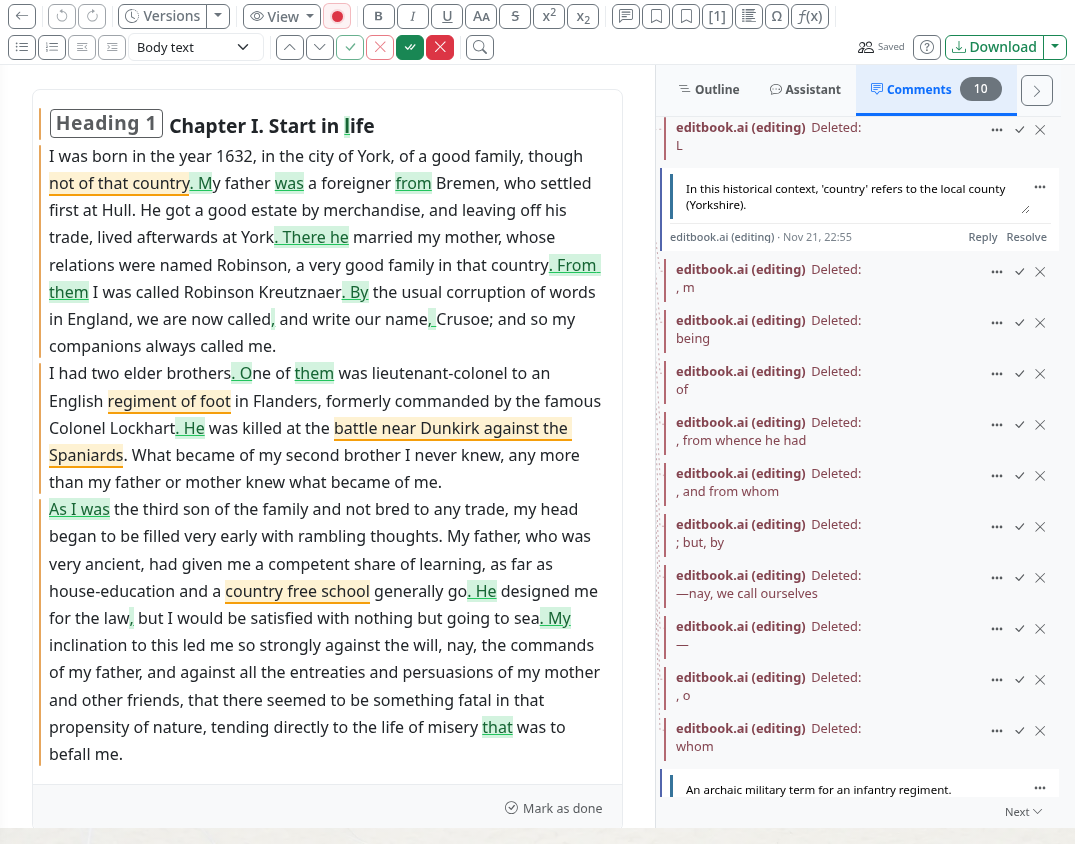
The new text, with each deletion in the margin to accept or reject
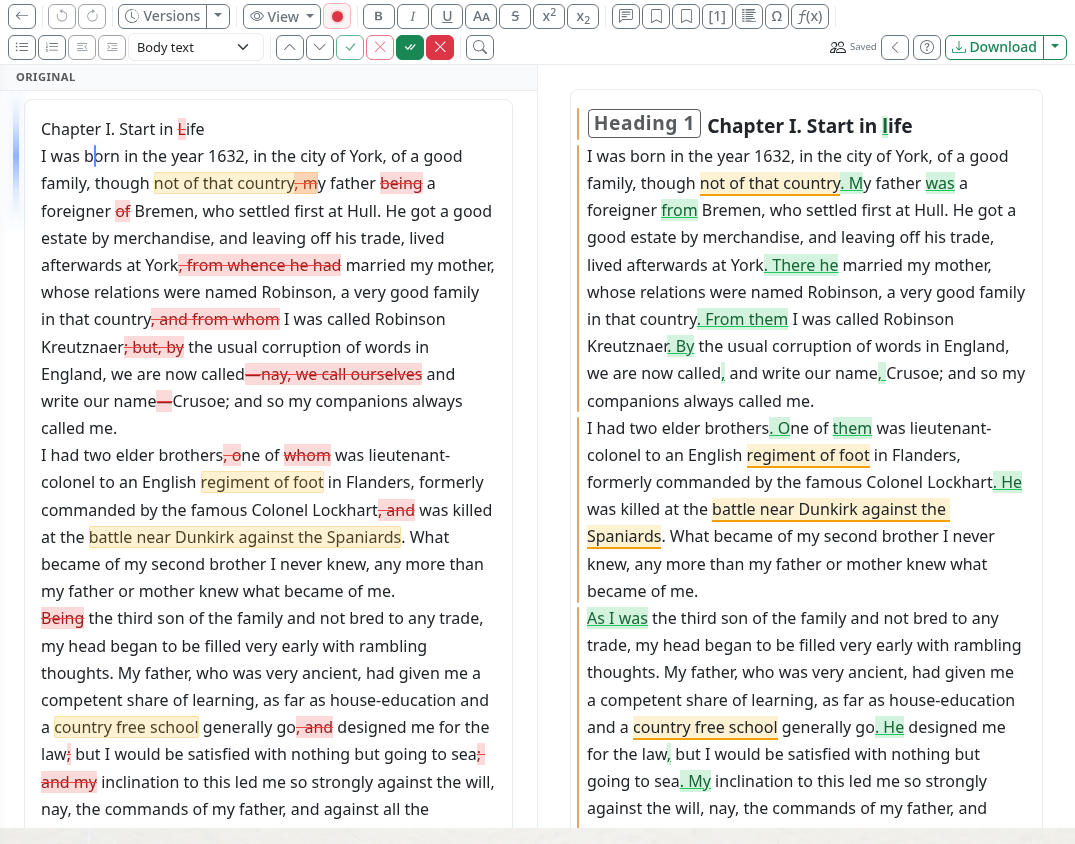
Original on the left, new text on the right
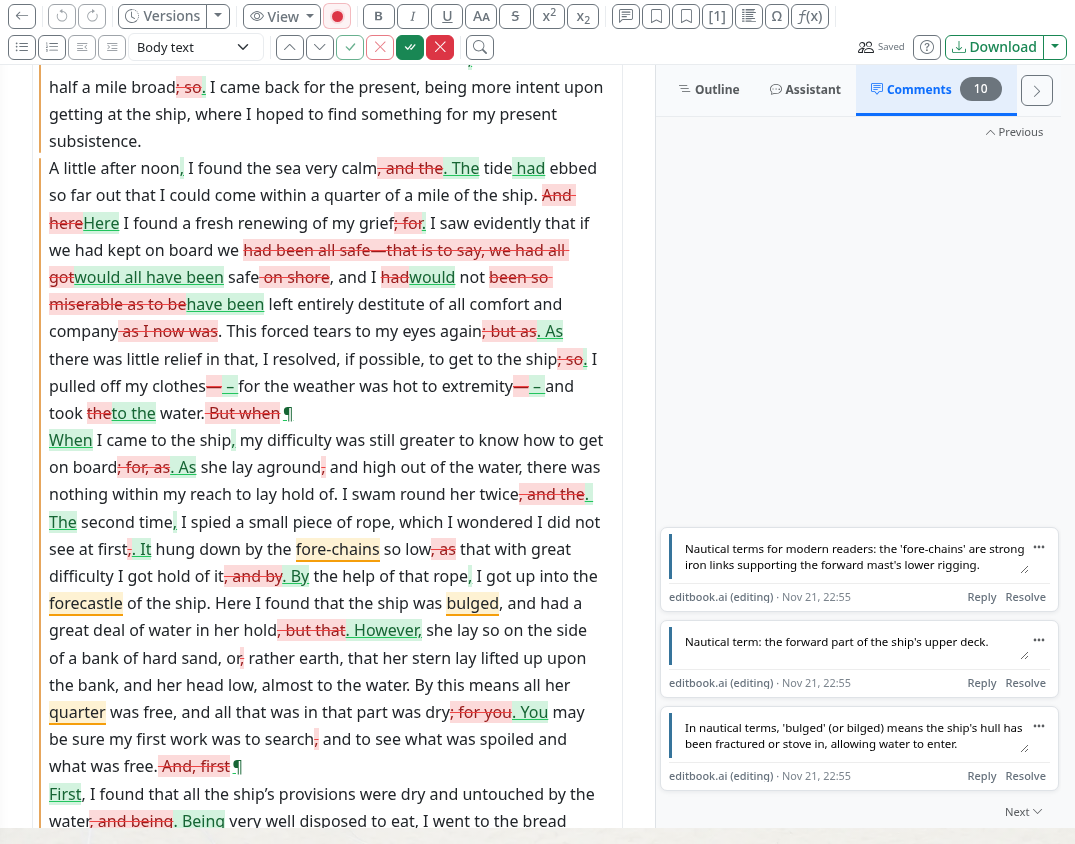
Comments next to the passage they are about
Under View you choose how changes are shown: in the text, with deletions hidden, with deletions in the margin, or with the original next to the new version. Click through the views above to see each one.
You can accept or reject a single change, or all changes in a selection. When the same correction occurs throughout the book, such as the same spelling fix in fifty places, you accept or reject it once instead of fifty times.
AI suggestions appear as tracked changes
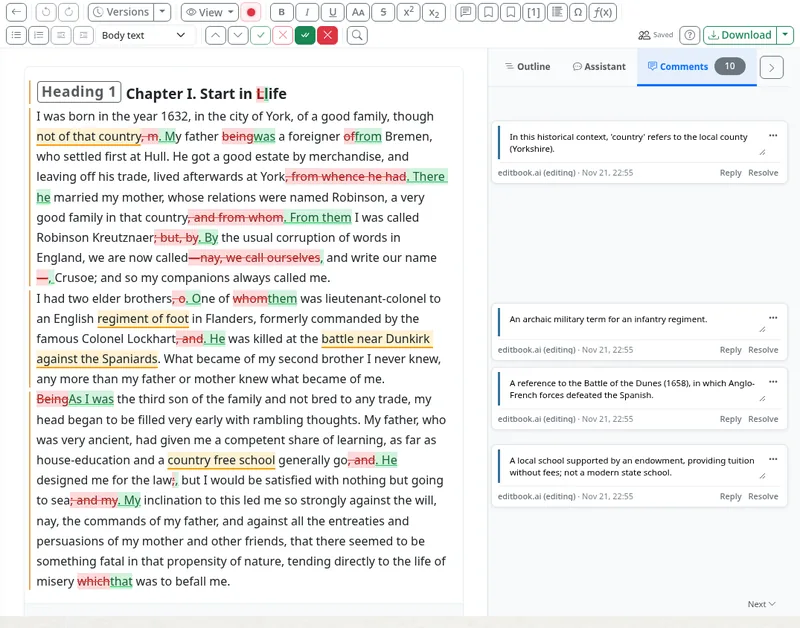
Many editors are wary of AI because it rewrites a passage and leaves them to find out what changed. In EditBook the AI does not overwrite your text. When you run editing, proofreading or a translation, it writes its suggestions into the book as tracked changes, chapter by chapter, under its own name. You review them the same way as changes made by a person and keep only what you agree with. Where a suggestion needs explaining, the AI adds a comment.
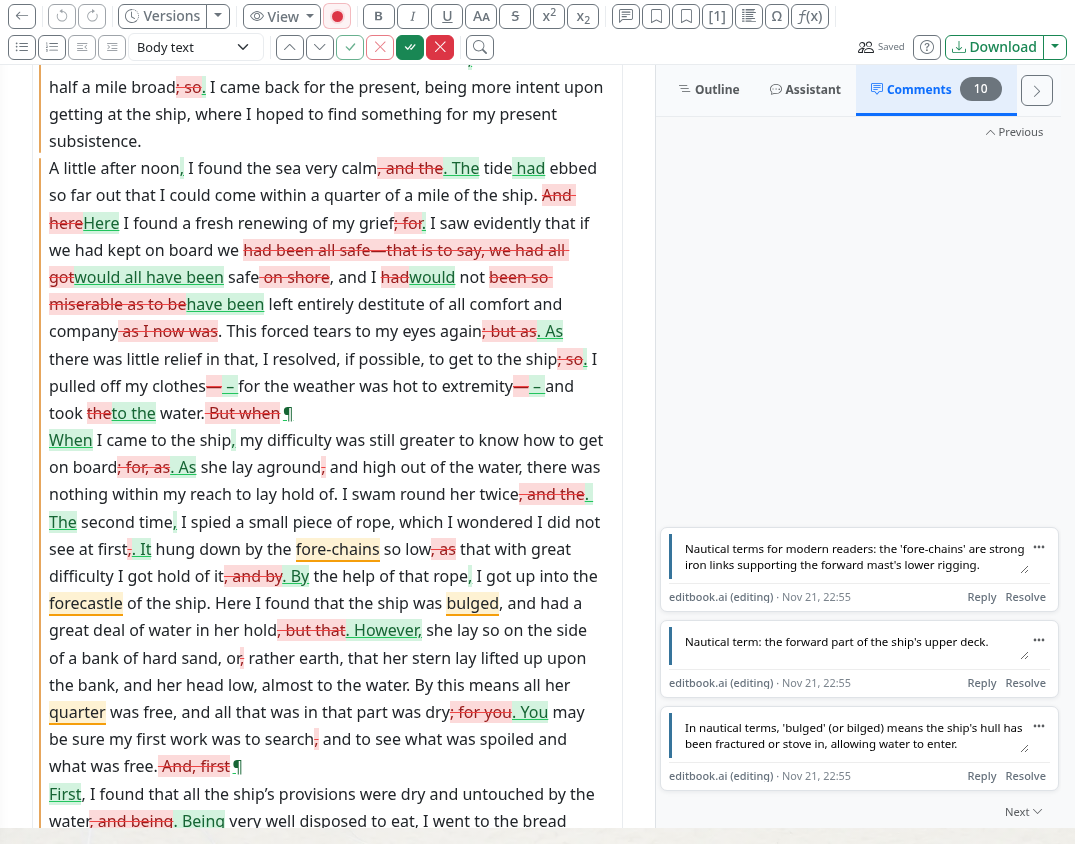
The assistant in the side panel works the same way. You can ask it, for example, to rename a character throughout the book. It prepares the changes, and you decide whether to apply them.
Word files
Whatever happens in the editor, the author eventually gets a Word file. That file has to work in Word, including the parts that often break when a document goes through other software: comments with replies, footnotes, and citations from a reference manager.
When you upload a Word file, the editor keeps what is in it: tracked changes from earlier rounds with their author and date, comments and replies, footnotes and endnotes, formulas, and citations from Zotero, EndNote or Mendeley.
When you download, you get a normal Word file. Changes that nobody has accepted or rejected yet are tracked changes in Word, with author and date. Replies stay under the comment they belong to. Citations still work with your reference manager, so you can update them in Word. We tested this in Word itself: accepting and rejecting all changes, saving, and opening the file again.
The Word file is now prepared in the background while a progress bar shows how far it is. Even a long manuscript with thousands of changes takes seconds instead of minutes.
Your existing manuscripts
Manuscripts you were already working on have been moved to the new editor, including their tracked changes and comments. New uploads open in it directly. Starting an editing, proofreading or translation round works the same as before.
What has changed is the plan you see before a round starts. We explain that in a separate post.