
As an editor, you receive plenty of emails from authors: a new manuscript, a revised draft, an explanation of the changes. The attachment needs to go in the right folder, you want to keep the email with it, and the manuscript still needs uploading to EditBook. That’s a lot of clicking before you get to the text.
There’s now an easier way, straight from your email app. Forward the author’s message and attachments to your personal EditBook address. EditBook automatically looks for the matching project or suggests creating a new one. The email and attachments arrive together in your workspace inbox.
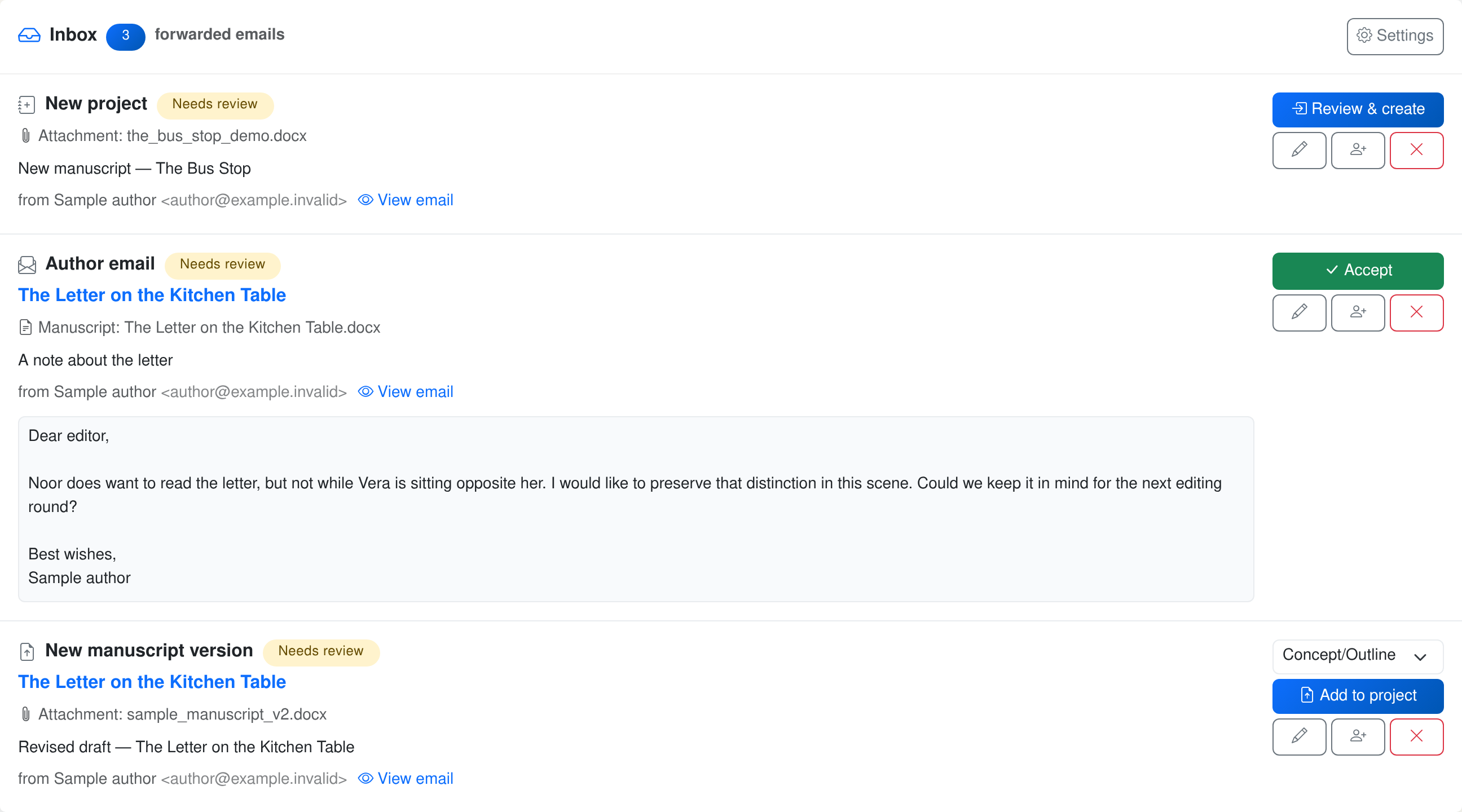
A revised draft, a note from the author and a proposed new project. The expanded email appears alongside the suggested action.
You can also include an instruction when forwarding. Above the forwarded message, write something like:
@editbook: run an assessment of the attached manuscript.
EditBook can then start the assessment while you carry on with your emails. When you later open the project, you’ll see its progress or be able to read the report. You don’t need to upload the manuscript yourself and start the assessment separately.
Your forwarding address and automatic request settings are in the inbox settings. Creating new projects automatically requires a separate opt-in there. If the project or instruction is unclear, the email stays in the inbox for your review. Email processing and requests use the usual credits.
Small improvements to the editor
We’ve also made a few additions to the editor:
- Accents and special characters. Use the Ω button to find a character or choose a variant of a selected letter, such as é instead of e. You can also enable Word’s accent shortcuts there.
- Moving text. When you cut and paste with change recording enabled, the old and new positions remain linked as a move. This works across chapters in the same manuscript too. You can accept or reject the move.
- Formatting. The toolbar now includes underline, small caps, strikethrough, superscript and subscript. Formatting changes are tracked when change recording is on.
More perspectives on your manuscript
When you’re unsure about a manuscript, a second reading can help. In the analysis panel, you now choose one, two or three perspectives. Each perspective is an independent reading by a different AI model. You receive one combined report that keeps both shared findings and differences of opinion visible.
You can also add market research. EditBook looks for comparable books and explains how your manuscript relates to them, with links to the sources. For authors, it also looks for publishers and agents that may be a good fit. The research appears in a separate report; validated findings also inform the manuscript analysis.
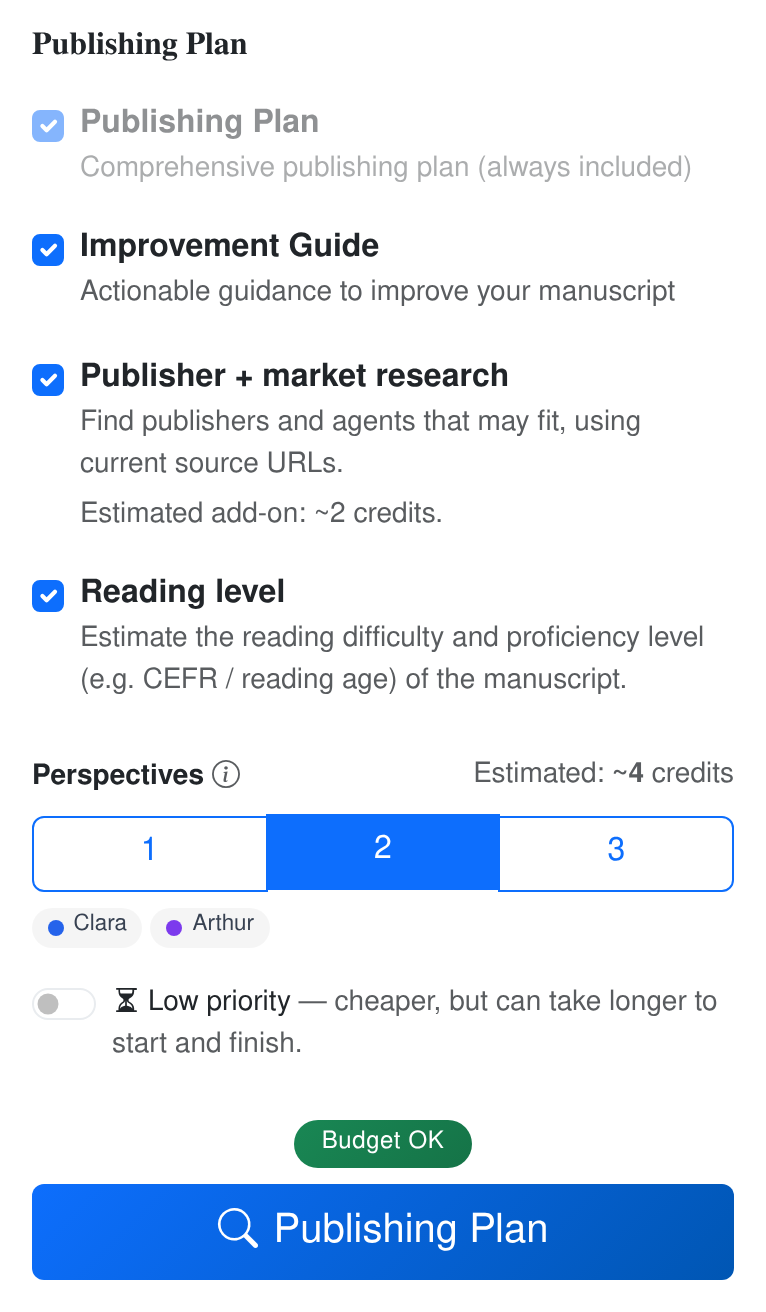
More perspectives and additional reports use extra credits. Before starting, you see the estimate for your manuscript and settings. See the analysis step by step.
We’ve written a separate post about the assistant alongside your manuscript.